I bought a MacBook Pro!
The decision has been made. David is broadening his hardware horizons with the selection of an Apple MacBook Pro as his next laptop.
So last time I shared how I was trying to figure out what my next laptop would be. Well I made a decision.. and it is a bit of a surprising one, but yes. I now have an Apple MacBook Pro!
I remember the first time I attended Microsoft’s MVP Summit in Redmond back in 2015, being really surprised at the number of MVPs and Microsoft staff that were using MacBooks. I just assumed being a Microsoft event everyone would be using Windows, but apparently not. That made a lasting impression.
More recently I’ve read with interest how a few of my SixPivot colleagues have been using MacBooks for work. Some were long-time Mac users, others more recent adopters. One good piece of advice was to make sure you still had a good Windows laptop available. We work with a diverse range of clients - some provide their own laptops (often with preconfigured VPN/security software), some allow you to use your preferred device, and some might need it to be a Windows machine. My old Dell is still in good shape, so I have that covered.
After weighing up all the options I wrote about in the last post, I ended up picking the MacBook.
The specs:
- 16-inch MacBook Pro in Space Black with M5 Pro chip
- 18-core CPU, 20-core GPU, 16-core Neural Engine
- 64GB unified memory
- 2TB SSD storage
- Standard display
- US English Backlit Magic Keyboard with Touch ID
- Three Thunderbolt 5 ports, MagSafe 3 port, 3.5mm headphone jack, HDMI port, SDXC card slot
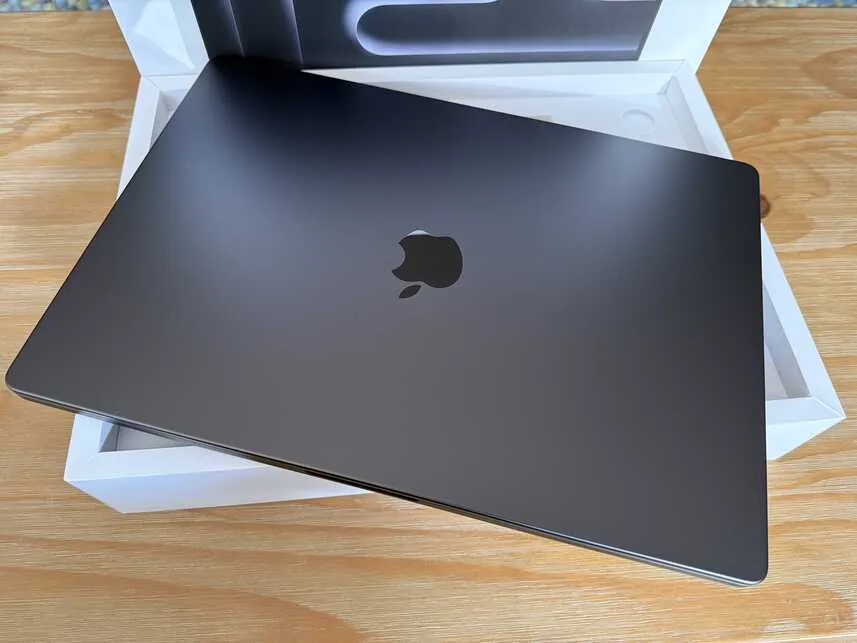
Physically it’s not dissimilar to other laptops I’ve used. One obvious thing is the different arrangement of modifier keys on the keyboard. (More about that later).
The getting started process was pretty straightforward:
- Confirm language and region
- Optionally transfer data from another device (I chose to set up as new)
- Accessibility preferences
- Data and privacy preferences
- Creating a local Mac account
- Optionally then sign in with Apple Account (which I did)
- Confirm Mac settings
- Siri and AI
- Notifications
- Touch ID
- Apple Pay
- And then you’re about done.
A friendly welcome screen and we’re up and running. Sometimes change is a good thing. You can challenge your habits and assumptions and sometimes find better ways of doing things.
Nice things
Everyone raves about battery life, especially with the newer ARM-based MacBooks. For the most part I’m seeing this to be true.
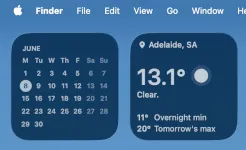
The integration with iPhone apps is nifty. I wrote a few years back how dodgy a lot of the weather data for Australia is. So it’s nice that through this feature I can have the Australian Bureau of Meteorology’s iOS app sitting on my desktop as a widget.
That integration also includes Messages, Phone and FaceTime. Messages is the one I’ve noticed the most, as they pop up as notifications in macOS in addition to on my iPhone. As I normally have my phone on silent, the ‘ding’ from macOS surprised me at first. Being able to copy/paste screenshots into Messages from macOS is a nice bonus. Yes, you can do that on iPhone, but it is much easier viewing a 600 page PDF on a big screen that you want to copy a diagram out of.
New and different things
macOS is Unix-based. Or according to Wikipedia: A “proprietary Unix operating system, derived from OPENSTEP for Mach and FreeBSD”.
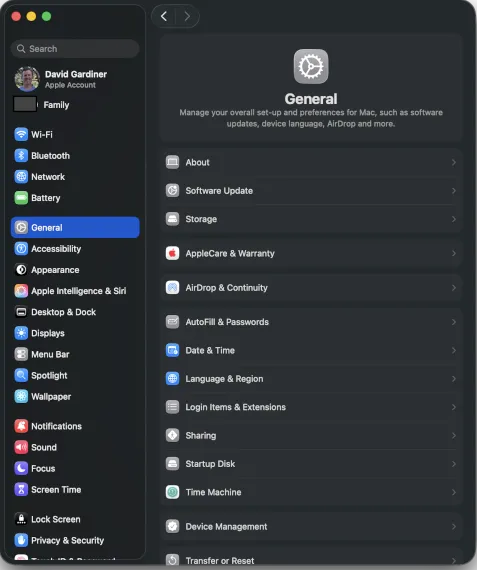
As an experienced iPhone user, there are some areas of the user interface that are quite familiar. System Settings is a good example.
I suspect many Mac users may have never even opened a shell and are quite happy sticking with the GUI interface. macOS comes with ‘Terminal’ as the default terminal program, and zsh as the default shell.
zsh is an interesting choice for macOS - it’s apparently still hosted on SourceForge (there’s a blast from the past!), but from what I’ve seen online, the reason Apple chose it was due to the software license it uses.
I could switch to another shell (including PowerShell) but for now I want to immerse myself in all things ‘Mac’ so becoming more acquainted with zsh is the way to go.
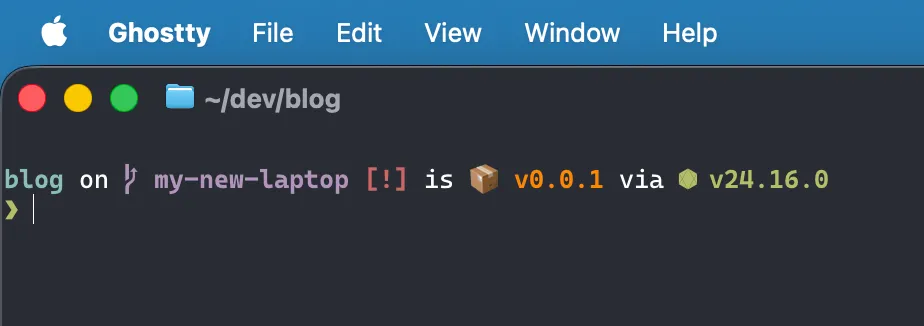
I have installed Ghostty on the recommendation of Gert and have been using that in preference to Terminal.
Swiping to switch applications
I’ve been impressed when I’ve seen other MacBook users somehow swishing left and right between fullscreen applications. I accidentally swiped with three fingers on the trackpad and discovered that was how you do that! Command-Tab is the keyboard equivalent (and similar to Windows Alt-Tab)
Menus
This has caught me out a few times, and I was vaguely aware of this but had kind of forgotten. macOS menus always live at the top of the screen. Sometimes if the application you’re using is fullscreen then the menu will disappear unless you mouse up to the top.

Start menu
It’s called the Dock, it lives at the bottom, and like the application menus hides itself unless you mouse down the bottom of the screen.
I do keep hitting the Command key thinking it’s the Windows key and it will bring up the dock (or Apps list). Turns out I should be using Fn-A and Fn-Shift-A respectively.

Keyboard
The keyboard is fine. The feel is quite comparable to my Dell, which I’ve had no complaints with. As I mentioned above, the modifier keys are slightly different. There’s a Control key but it is used differently to Windows. All the familiar shortcuts that you’d use Ctrl on Windows, you actually use the Command key (with the funny squiggle ‘⌘’).
So close, but so different:
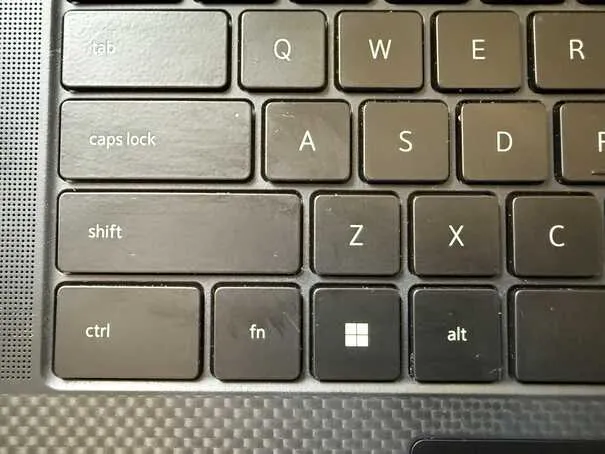
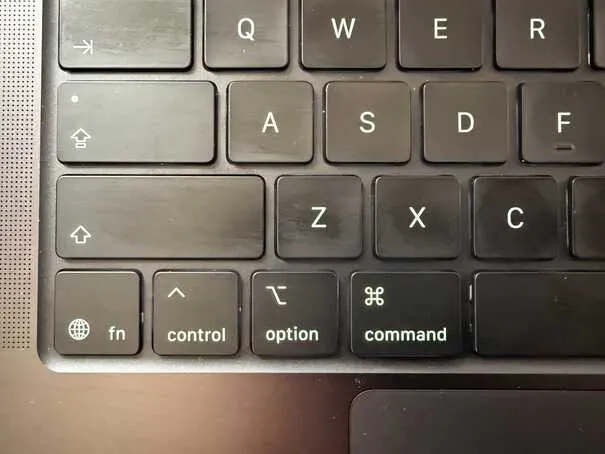
And no Delete key! How bizarre. Well technically there is a key that Apple refers to as ‘Delete’, but it has the ⌫ icon and acts like what I think of as Backspace (in that it deletes the character to the left and moves left). If you use fn-Delete then that does the equivalent of a normal delete key (Apple refer to this as ‘forward delete’), or you may be able to use Control-D.
I need to memorise the Mac keyboard shortcuts!
I also regularly use an external keyboard. That creates a conundrum. When connected to my MacBook, do I:
- Use the modifier keys on the external keyboard like they physically mirror the ones on the MacBook Pro keyboard, or
- Change the mapping of the external keyboard so that I use it in same way as when I’m connected to a Windows machine.
I guess the question is which muscle memory is a stronger trigger - does the “feel” of the external keyboard have me fall into thinking “Windows” modifiers, or does looking at the MacBook Pro screen help transition my brain’s process to work in “Apple” mode?
Equivalent things
As Chocolatey is for Windows, Homebrew is a package manager for macOS (and also Linux). Where possible I’ve been using brew to install software.
It’s nice to find familiar applications are available on both platforms:
Missing things
A few Windows favourites that I will need to find alternatives to:
- Paint.NET (I’m trying GIMP but it feels overly complex for what I need)
- TortoiseGit
Weird things
I’m quite used to Windows Hello being able to sign me in by looking at me on my Windows laptop. Likewise on my iPhone using Face ID. So it is really odd that this is missing on the MacBook. I’ve found myself a few times smiling sweetly at my sleeping laptop, only to realise that it was oblivious to my attentions. There is Touch ID at least.
I started to install the Synology Active Backup for Business agent, but there’s some extra steps that sounded tricky. That may deserve a separate blog post if I get it working.
Limited support for Dell docks
I have a Dell WD19TB Dock that I usually run two of my three monitors through. I was a bit surprised to discover that the MacBook couldn’t see the second external monitor connected to the dock - it was just mirroring the same content on both. I found this documentation on Dell Thunderbolt Docks and Apple USB-C Hosts which explains what is possible.
It turns out macOS doesn’t support “Multi-Stream Transport”. And if you’re using DisplayPort and DisplayPort/HDMI (which I was), then mirroring is what happens. The workaround is to make sure one of the monitors is instead connected via USB-C. None of my monitors have USB-C output, so I bought one of these USB-C to HDMI cables, and sure enough I then had two distinct external monitors.
While the dock can technically host 3 monitors, it doesn’t look like that will work at all with macOS. I usually run the 3rd monitor through a separate hub (as my Dell laptop can’t run 3 through the dock at high resolution), so I can do the same with the MacBook.
According to the ‘M5 Pro chip’ section of How many displays can be connected to MacBook Pro, 3 external displays is the hard limit.
SixPivot laptop allowance
One of the things I realised when I was researching laptops was that, even though the laptop allowance at SixPivot is very generous, because of the crazy hardware price hikes, you don’t get as much as you used to. I’m pleased to see that just in the last few days they’ve not only increased the allowance, but also provided a second option if you are happy to wait 3 years for a hardware refresh instead of the normal 2. In two (or three) years time that will be something to consider.
Onwards
It’s been a pretty smooth start. I’m looking forward to learning more about what this machine can do 😀